Try our cookies Alza.cz a. s., Company identification number 27082440, uses cookies to ensure the functionality of the website and with your consent also to personalisage the content of our website. By clicking on the “I understand“ button, you agree to the use of cookies and the transfer of data regarding the behavior on the website for displaying targeted advertising on social networks and advertising networks on other websites.
Alzak icon

How to Fix Login Browser Not Showing in the Alza App

Article

Updated on

Sometimes, when signing in to the Alza app on Android devices, an issue may occur where the external login page doesn't appear, preventing you from logging in. This is often caused by an unsupported default browser that blocks the opening of external apps (known as deeplinks). In this article, you'll learn how to fix the issue and set the correct default browser.

Alza aplikace a problém s přihlášením
  1. How to set Chrome as the default browser on Android?
  2. Using the Samsung and Xiaomi web browsers
  3. Discover the comfort and convenience of shopping with the Alza.cz mobile app

How to set Chrome as the default browser on Android?

Once you have the Alza app installed, you’ll be prompted to enter your login information when launching it for the first time. On Android phones, this should open a browser window with the login page for Alza.cz. However, in many cases, the window fails to appear. This issue is usually caused by an unsupported default browser that blocks opening external apps from within the browser — also known as deep links. Here's how to easily fix it.

Setting Chrome as the default browser on Samsung phones

Chrome na telefonech Samsung, Chrome na telefonech Samsung, Chrome na telefonech Samsung,
On Samsung phones, go to Settings → Apps → choose default apps, and set Chrome as your default browser.

Setting Chrome as the default browser on Xiaomi phones

Chrome na telefonech Xiaomi Chrome na telefonech Xiaomi Chrome na telefonech Xiaomi
On Xiaomi phones, go to Settings → Apps → Manage apps, then tap Additional settings in the top-right corner.
Chrome na telefonech Xiaomi Chrome na telefonech Xiaomi
Select Default apps → in the Browser section, choose Chrome from the list.

Using the default Samsung and Xiaomi browsers

Many users also stick with the manufacturer’s pre-set default browser. We've created an illustrated guide to help you set up both the Samsung and Xiaomi browsers. It only takes a minute on either device.

Enabling external app access in the Samsung browser

Samsung prohlížeč Samsung prohlížeč
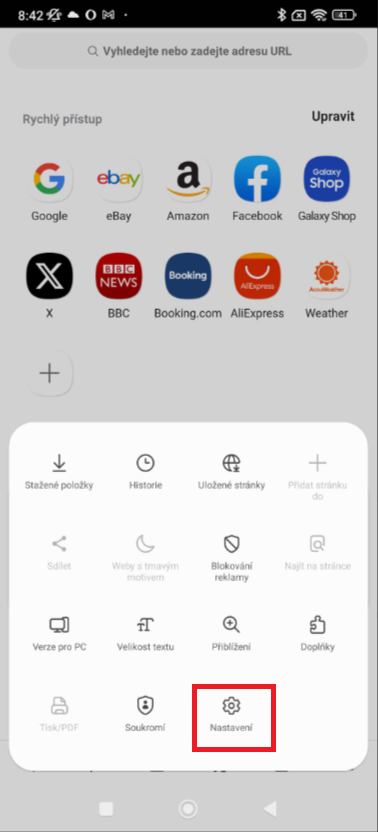
In the Samsung internet browser –> Tap the "hamburger" menu icon (three lines) in the upper right corner –> choose Settings.
Samsung prohlížeč Samsung prohlížeč
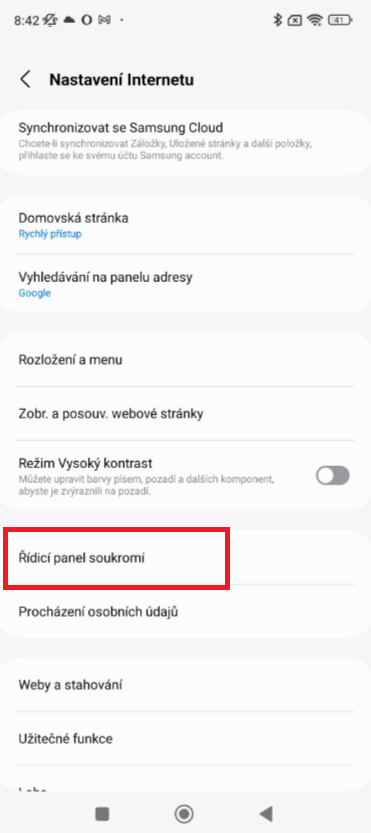
Tap Privacy Dashboard –> disable Block new windows and Block pop-ups.

Enabling external app access in the Xiaomi browser

Xiaomi prohlížeč Xiaomi prohlížeč Xiaomi prohlížeč
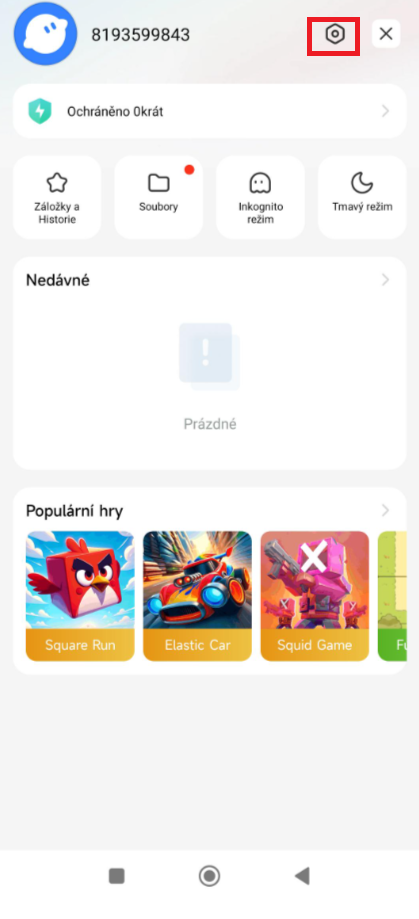
Tap the user profile icon in the lower right corner –> tap the Settings icon in the upper right corner –> go to Privacy Protection.
Xiaomi prohlížeč Xiaomi prohlížeč Xiaomi prohlížeč
On the next screen, again tap Privacy Protection –> Show pop-up windows –> select Allow.

With our illustrated guide, you’ll have no trouble setting up your Android phone to complete the first login to the Alza app.


Print
P-DC1-WEB05

Bei uns findest du (fast) alles Wir haben über 75.000 verschiedene Produkte auf Lager. More info »